Home Office Design Ideas for People Who Actually Work
By Noah James
• 8 min read • Founder, DrivewAI
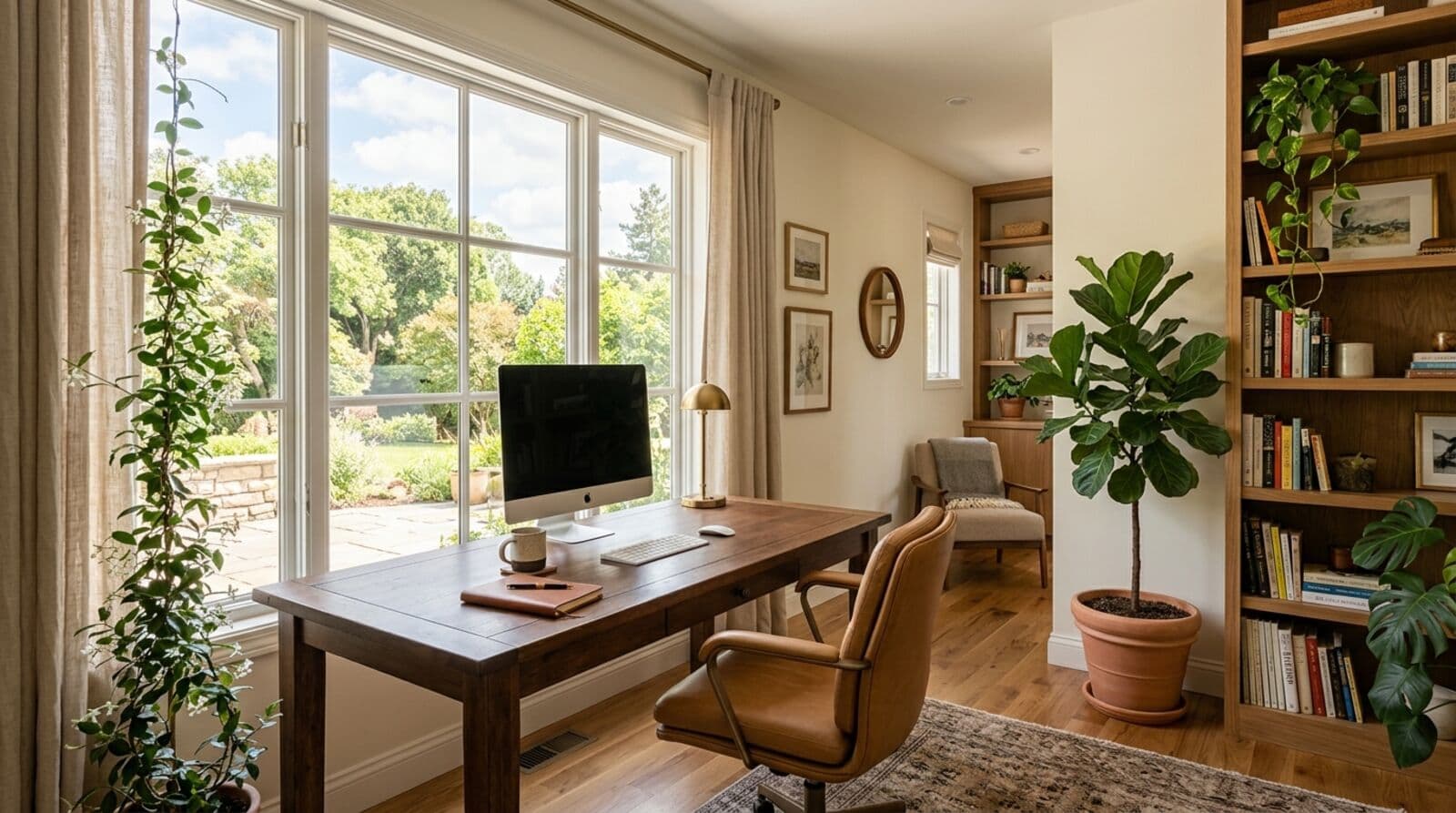
Most home office design advice falls into two camps: the Instagram showroom with a single succulent and no visible wires, or the corporate cubicle transplanted into a spare bedroom. Neither works for people who actually sit at a desk eight hours a day. A good home office needs to be productive first, pleasant second, and photogenic never. If it happens to look nice, great — but form follows function in this room more than any other in your house.
Desk Placement: Face the Door, Not the Wall
This is the most common mistake in home office layout, and it's the easiest to fix. Most people push their desk against a wall and face it, staring at drywall (or a window, if they're lucky) for eight hours. There's a reason every executive office in the world has the desk facing the room entrance — it's called the "command position," and it's not just feng shui nonsense.
When your back is to the door, you're subconsciously alert to what's behind you. Footsteps, pets, kids — your brain spends energy monitoring the space you can't see. Face the door, and that low-grade alertness disappears. You'll focus better. It's a free productivity upgrade that costs nothing but rearranging furniture.
If your room layout makes this impossible — maybe the only outlet is on the far wall — a simple mirror placed across from your desk so you can see the doorway behind you accomplishes the same thing. Sounds strange, works well.
Lighting Layers: The Overhead-Only Mistake
A single overhead light in a home office is a recipe for eye strain, headaches, and looking terrible on video calls. The OSHA ergonomic guidelines for computer workstations emphasize that lighting should be layered and positioned to avoid glare on screens, and most home offices violate every one of those principles.
You need three lighting sources at minimum. Ambient light comes from overhead — a flush mount or recessed cans, ideally on a dimmer. Task light is a desk lamp positioned to your non-dominant side, angled at your work surface but not at your screen. Bias lighting is a light strip behind your monitor that reduces the contrast between a bright screen and a dark wall, which dramatically reduces eye fatigue.
Natural light is excellent but needs management. A desk perpendicular to a window — not facing it, not with the window behind you — gives you daylight without glare on your screen and without turning you into a silhouette on Zoom. If you're doing video calls, light should come from in front of you, not behind.
The total cost for upgrading from a single overhead to a proper three-layer setup is usually $100-250. A decent desk lamp is $40-80, an LED bias light strip is $15-30, and a dimmer switch is $20-40. Compared to what you'll spend on a desk, this is nothing.
Sound Management: Rugs, Curtains, and Acoustic Panels
Hard floors, bare walls, and minimal furniture create echo chambers. You might not notice it consciously, but your brain processes that reverb as noise, and it's fatiguing over a full workday. Your coworkers on calls will definitely notice — you'll sound like you're presenting from a bathroom.
The fixes are straightforward and double as design elements:
- A thick area rug under your desk and chair absorbs floor reflections and makes the space warmer - Heavy curtains or drapes on windows absorb sound and control light simultaneously - Acoustic panels on the wall behind your monitor reduce echo from your voice bouncing back at your microphone - A bookshelf filled with books is one of the best sound diffusers you can own — uneven surfaces scatter sound waves
You don't need to turn your office into a recording studio. Two or three of these changes will make a noticeable difference in both how the room sounds on calls and how it feels to sit in for hours.
Storage That Hides the Mess
Here's a contrarian take: visible storage in a home office is a productivity killer. Open shelving looks great in photos because someone styled it for twenty minutes before taking the shot. In daily use, it becomes a visual to-do list. Every binder, every stack of papers, every random object is a tiny distraction.
Closed storage wins. A credenza behind your desk, a filing cabinet under it, or a closet with doors you can shut. The goal is a clear desk and clear sightlines when you're working. Everything else gets put away.
For paper management — and yes, paper still exists despite what tech bros say — a simple two-tray system works better than any elaborate filing system. Inbox tray for things that need action. Archive tray for things that might need reference. Once a month, move the archive tray to a filing cabinet. That's the entire system.
Cable management is the other half of visual clutter. A cable tray mounted under your desk ($20-30) gets every wire off the floor. Velcro cable ties ($8 for a pack) bundle everything together. A small power strip mounted to the underside of the desk keeps chargers accessible but invisible. These aren't exciting purchases, but they make the difference between a room that feels chaotic and one that feels calm.
The Dual-Monitor Desk Dimension Guide
If you use two monitors — and for most knowledge work, you should — your desk needs to be at least 60 inches wide and 30 inches deep. A 48-inch desk can technically hold two monitors, but you'll be sitting too close and constantly turning your head at uncomfortable angles.
Here's the sizing breakdown that most furniture stores won't tell you:
- Single monitor, minimal setup: 48" x 24" works fine - Single monitor with space for papers/tablet: 55" x 28" is comfortable - Dual monitors: 60" x 30" minimum, 72" x 30" is ideal - Dual monitors plus a laptop: 72" x 30" or an L-shaped desk
Depth matters more than people think. At 24 inches deep, a 27-inch monitor sits too close to your eyes. At 30 inches, you get proper viewing distance without needing a monitor arm (though a monitor arm is still a good idea for adjustability). The OSHA workstation guidelines recommend a screen distance of 20-40 inches from your eyes, and shallow desks make that hard to achieve.
Standing desk converters generally need even more depth because they add their own platform. If you're going sit-stand, budget for a full standing desk rather than a converter — they're more stable, offer more surface area, and the prices have dropped significantly in the last few years.
Budget Home Office vs Splurge-Worthy Upgrades
Not everything in your office needs to be premium. Here's where to save and where to spend:
Always splurge on the chair. This is non-negotiable. You're sitting in it for 2,000+ hours a year. A $300-500 ergonomic chair with adjustable lumbar support, seat depth, and armrests will prevent back pain that a $100 chair will cause. Used Herman Miller Aerons and Steelcase Leaps can be found for $400-600 and they last fifteen years. This is the single best investment in your home office.
Save on the desk. A solid butcher block countertop on adjustable legs is $200-300 and rivals desks that cost $800+. IKEA's KARLBY countertop on ALEX drawers has become a cliché for a reason — it works, it's cheap, and it looks decent.
Splurge on your monitor. A good 27-inch 4K display reduces eye strain and makes text crisp enough to read comfortably all day. The difference between a $200 monitor and a $400 one is visible within the first hour.
Save on decor. One or two pieces of art, a plant, and a clean desk. That's it. Over-decorating a workspace creates visual noise. This isn't your living room.
Designing the Room Before You Buy
Customized renders start at $9.00 each. Before you start ordering furniture and measuring walls, consider previewing your home office layout with AI. Upload a photo of your current room — whether it's a dedicated office, a spare bedroom, or a corner of your living room — and test different configurations.
See how a 72-inch desk looks against the window wall versus the interior wall. Check whether a dark wood credenza works with your flooring or clashes. Figure out if the room can handle a bookshelf or if it'll feel cramped. These are decisions that are painful to reverse once you've assembled a 150-pound desk in the wrong spot.
The value isn't in creating a perfect rendering — it's in catching mistakes before they cost you money and a Saturday afternoon with an Allen wrench. Most people get their home office right on the second or third try. Previewing lets you make those iterations on a screen instead of in real life.
Making It Work for the Long Haul
A good home office design isn't about following trends or matching a mood board. It's about building a space where you can sit for eight hours without your back hurting, your eyes straining, or your focus dissolving. Face the door, layer your light, manage your sound, hide your clutter, and invest in the chair. Everything else is secondary.
If you're starting from scratch or rethinking an existing setup, the staging tool can help you experiment with layouts and furniture before you commit. And if you're redesigning other rooms in the process, check out our guides on living room design and room makeover ideas for the same practical, no-nonsense approach. Design for how you work, not for how it photographs.
About the author
Noah James
Founder, DrivewAI
Noah James is the founder of DrivewAI, an AI home visualization platform that helps homeowners, contractors, and real estate agents preview renovations before committing. He built DrivewAI to close the gap between inspiration and execution in home improvement.
His writing focuses on practical renovation decision-making, material comparisons, and how AI visualization tools are changing the way people plan projects — from driveway replacements to full interior staging.
See your home transformed by AI
Upload a photo and get AI renderings across every style. Designs from $9 with a 24-hour refund guarantee.
Try DrivewAI Free